
But here’s the truth: you don’t need to understand everything to go live with a clean, professional-looking stream.
After working with many small streamers, the channels that grow are rarely the ones with the fanciest tech. They’re the ones that keep things simple, stable, and watchable.
In this guide, you’ll learn 7 practical strategies to make OBS streaming easier, smoother, and more professional—even if you’re a complete beginner.
Most beginners overload OBS from day one:
multiple scenes, animated overlays, browser sources, alerts, widgets—then they wonder why everything lags or breaks.
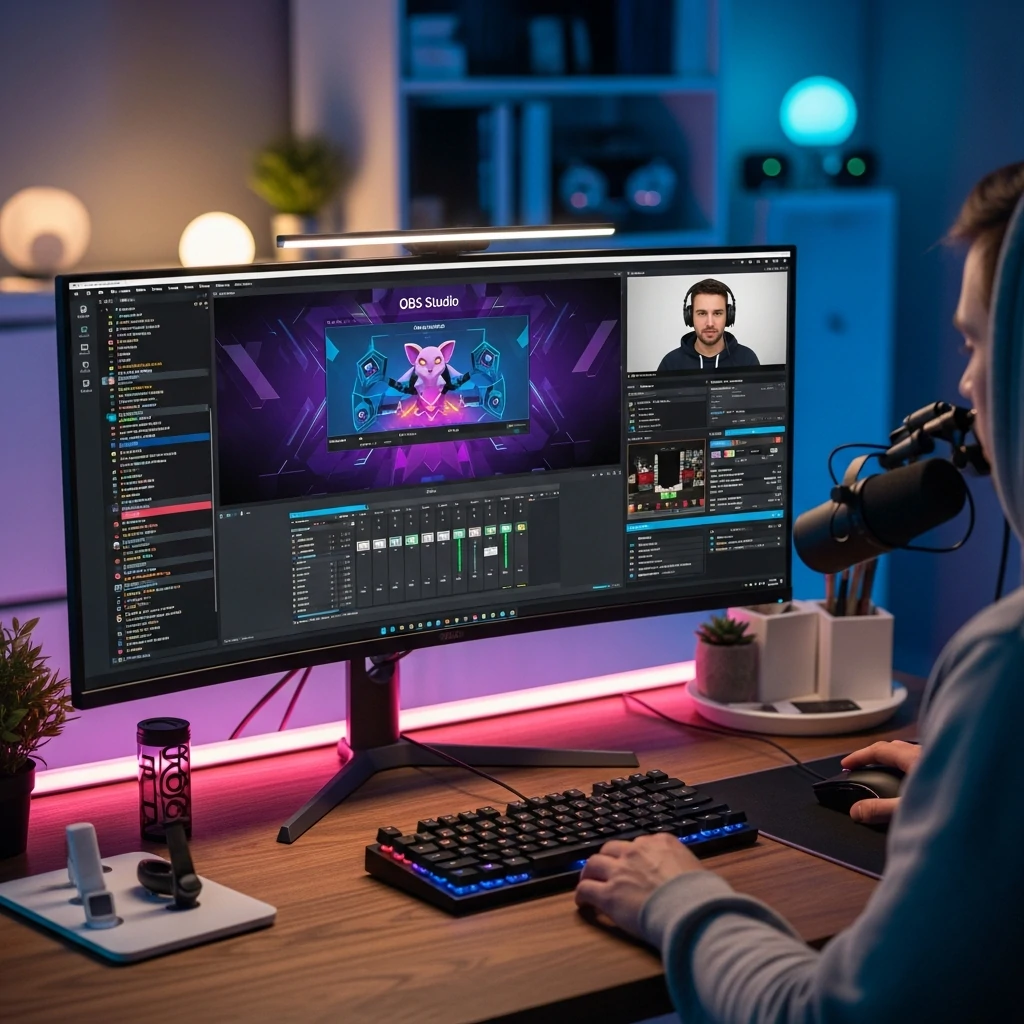
For your first steps in, build one stable main scene:
Game Capture / Window Capture – your main content
Video Capture Device – your webcam
Audio Input Capture – your microphone
Audio Output Capture – game/system audio (optional)
This simple setup makes it easier to:
Troubleshoot issues (you know exactly what’s active)
Learn how each source behaves
Add overlays and extras gradually without chaos
Once this base scene feels solid, you can expand into more complex layouts and transitions.
The biggest beginner mistake? Copying “pro” settings from a random YouTube video.
Your quality should always match your actual upload speed, not someone else’s.
Resolution: 1280×720 (720p)
FPS: 30 FPS (go 60 FPS only if your PC + internet are strong)
Bitrate (rough guide):
2500–3500 kbps → 720p, 30 FPS
4000–6000 kbps → 720p/1080p, 60 FPS
Do a speed test.
Use only 60–70% of your upload speed for streaming.
Example: 8 Mbps upload → stay around 4500–5000 kbps max.
A smooth, stable 720p stream will always feel better for viewers than a choppy “1080p” stream that constantly stutters.
If you want more detail on building a strong base setup, you can later read:
👉 How to OBS Studio Setup Top 10 – Ultimate Guide for Streamers
Viewers will tolerate average video quality.
They will not tolerate:
Echoing mic
Distorted voice
Game audio drowning you out
Constant peaking into the red
good audio = good experience.
Use one mic source only (avoid duplicates).
Aim for your mic to peak around -10 dB to -5 dB in OBS (yellow, not red).
Add basic filters to your microphone:
Noise Suppression – to reduce background hum/fan noise
Compressor – to keep loud moments under control
Limiter – to prevent clipping and ear-piercing peaks
Spending just 15–20 minutes tuning your audio once can instantly make your stream feel more professional and “trustworthy” to new viewers.
Instead of one messy screen that does everything, use scenes to structure your OBS streaming like a simple show.
At minimum, create:
Starting Soon – a “We’re starting” screen with music
Just Chatting – your camera + chat focus
Gameplay – game capture + webcam frame
BRB (Be Right Back) – for quick breaks
Ending / Thanks for Watching – to close properly
Then go to Settings → Hotkeys and assign keys like:
F1 → Starting Soon
F2 → Just Chatting
F3 → Gameplay
F4 → BRB
F5 → Ending
Scene switching with hotkeys keeps the stream smooth, reduces awkward pauses, and makes you look much more in control—without extra hardware.
First impressions matter. When someone clicks your stream, they decide in seconds whether to stay or leave—often before they hear you speak.
That’s where branding and overlays come in.
You don’t need something overly flashy. What you need is:
A consistent color palette
A clean webcam frame
Matching Starting/BRB/Ending screens
Readable labels (recent follower, subscriber, donation)
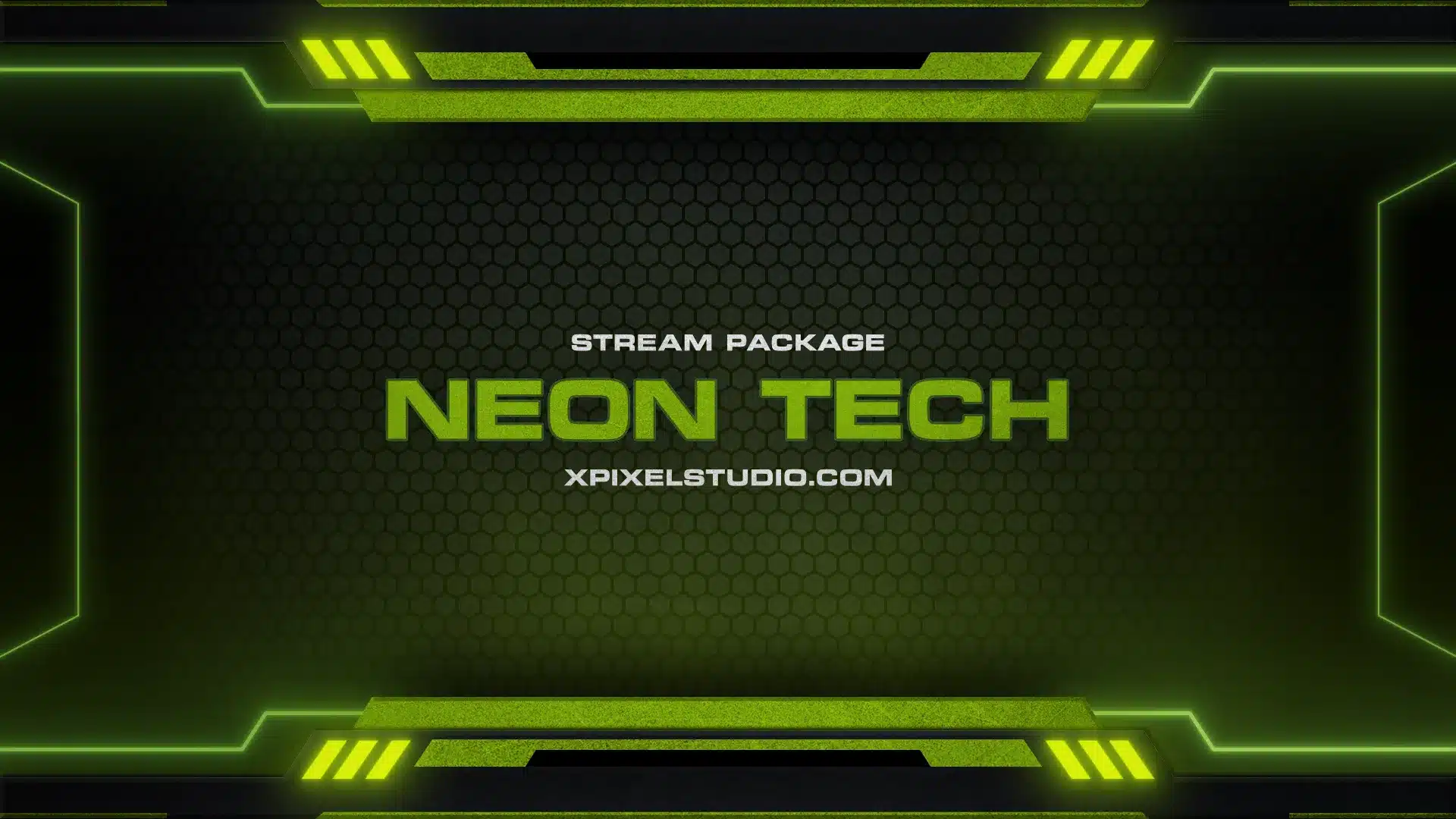
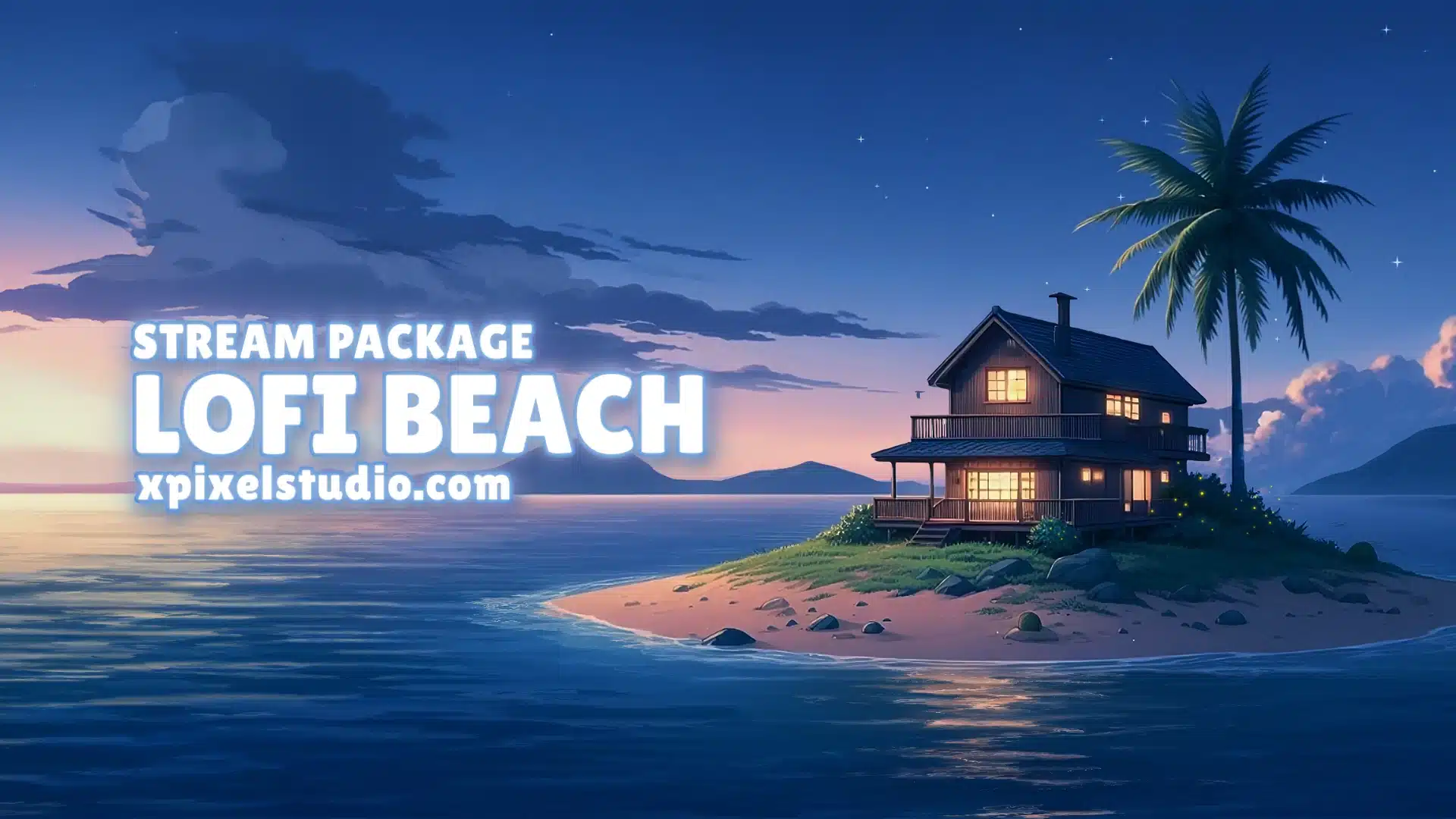
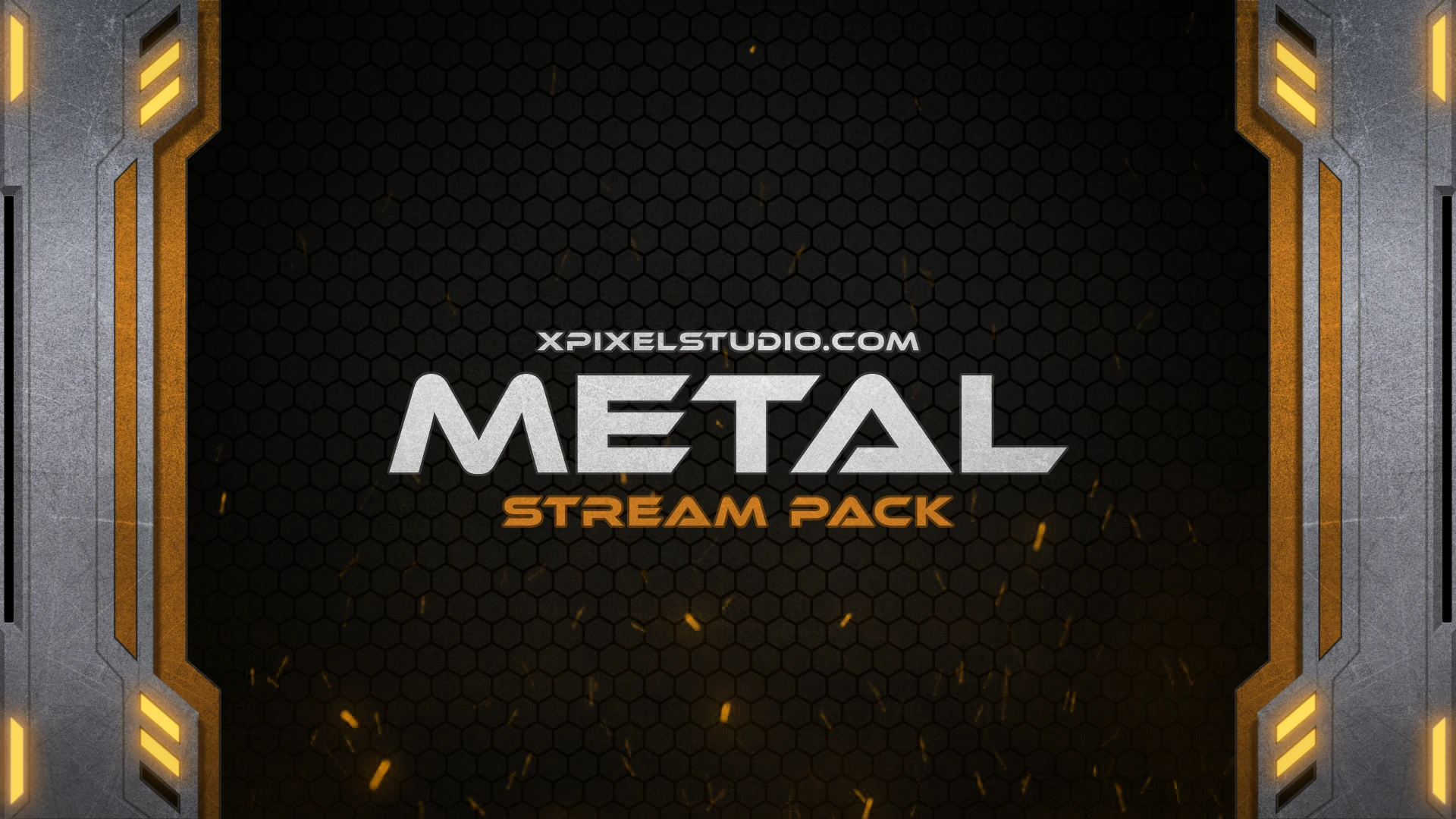
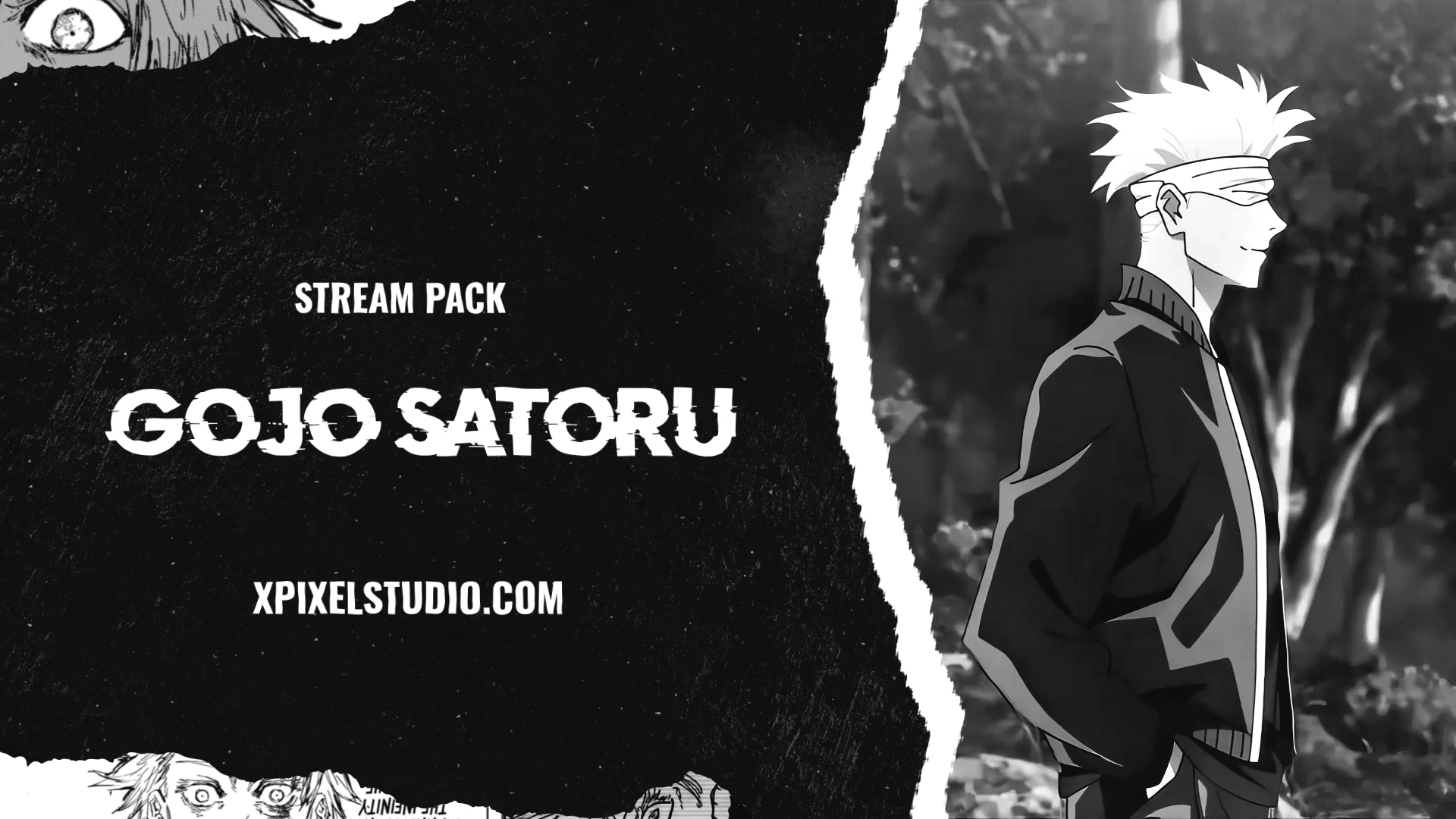
Instead of designing everything from scratch, you can start with a pre-made stream pack that’s already optimized for OBS.
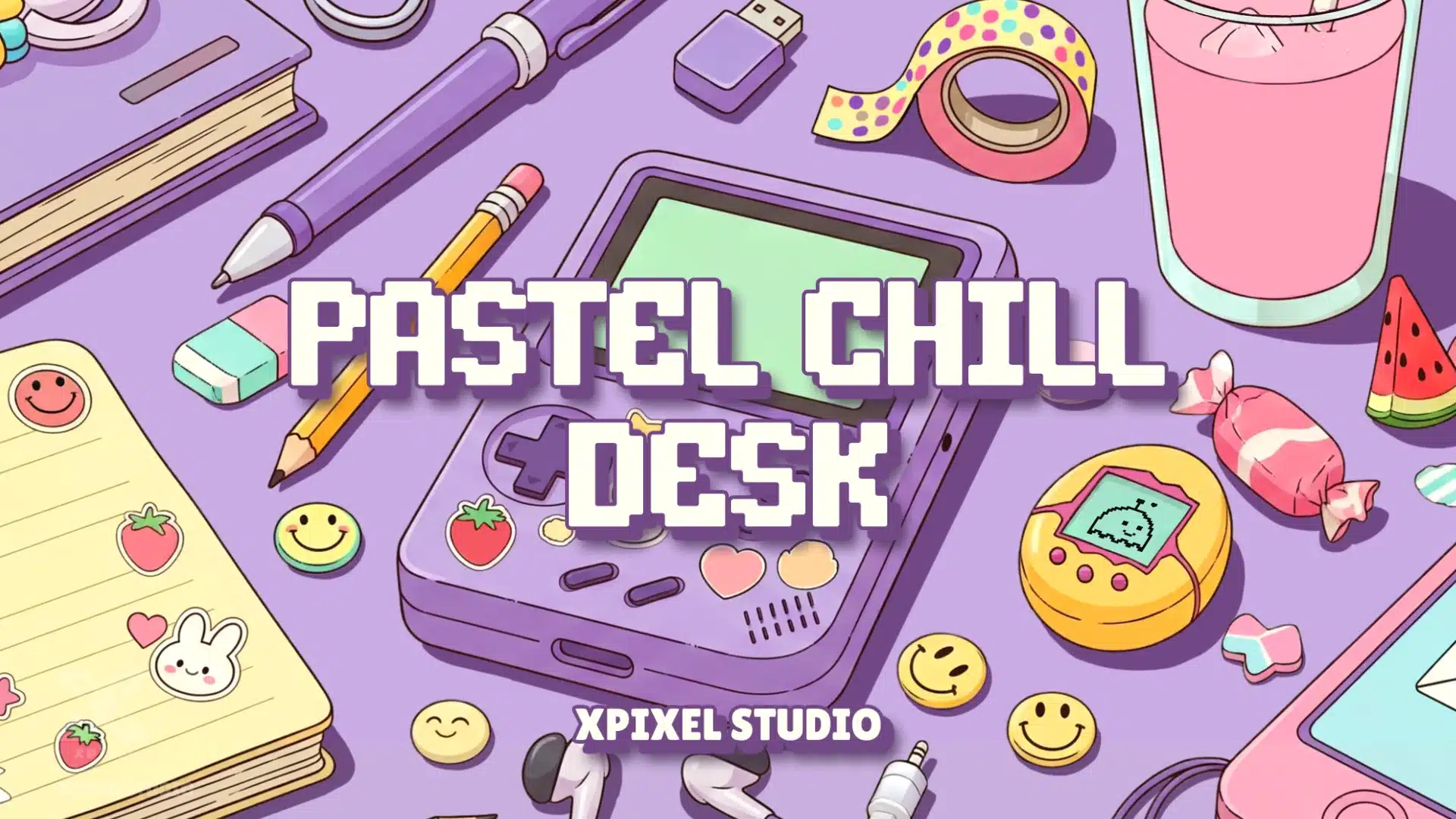
For example, if you like cozy and calming visuals, the Pastel Chill Desk Stream Pack gives you:
A cohesive pastel desk-themed layout
Clean overlays that don’t block gameplay
Matching screens that instantly make your channel feel “put together”
You can plug it into your OBS scenes, connect your sources, and your stream already looks like a brand instead of a random layout.
As your journey grows, you’ll likely have different formats:
Gaming nights
Just chatting sessions
Tutorials or screen recordings
Collab or guest streams
Instead of constantly changing everything manually, use:
Profiles – for different settings (bitrate, resolution, platform)
Scene Collections – for different layouts (overlays, scenes, sources)
Examples:
Profiles:
“Twitch 720p 30FPS”
“YouTube 1080p 60FPS”
Scene Collections:
“Gaming + Just Chatting”
“Tutorial / Screen Capture”
“IRL Minimal Layout”
This keeps your workflow organized and reduces the risk of “oops, I forgot to change that setting” moments right before you go live.
For bigger-picture strategies beyond just the tech, you can explore:
👉 Top OBS Streaming Top 10 – Must-Know Strategies for Streamers
The real improvement in obs streaming happens off-stream.
Make this your simple growth loop:
Do a short test
Record a local test or run a private stream.
Talk, switch scenes, play a bit of your game.
Watch 1–3 minutes of your own VOD like a viewer
Is your voice clear and louder than the game?
Is anything on screen distracting or too small to read?
Are scene transitions smooth and on time?
Choose one improvement for next time
Adjust audio levels
Move webcam to a better spot
Clean up text or labels
Simplify overlays if it feels too busy
If you want extra “quality-of-life” tricks for OBS, you can find more ideas in:
👉 Essential Guide to OBS Tricks Top 10 – Tips Made Simple
Small improvements each stream compound over time into a setup that feels polished, intentional, and truly yours.
You don’t need a high-end PC, studio camera, or expert-level tech knowledge to start obs streaming like a pro.
If you:
Build one simple, stable scene
Match bitrate and resolution to your internet
Prioritize clear audio
Organize your stream with scenes and hotkeys
Use profiles and scene collections as you grow
And keep improving just one thing per stream
…you’ll already be far ahead of most beginners.
From there, adding a well-designed stream pack (like the Pastel Chill Desk Stream Pack) and applying the deeper strategies in the related OBS articles will help your channel feel more professional, memorable, and worth following.
Start simple. Go live. Learn, adjust, and keep showing up.
That’s the real “essential guide” behind every successful OBS streaming journey.
Receive an additional 30% discount for your first order by signing up through email!