Alerts
Browse premium stream alerts for Twitch, Kick, and YouTube creators. Each alert is designed for followers, subs, donations, and other key stream events to help you create a cleaner and more engaging live stream. Compatible with OBS Studio, Streamlabs, and StreamElements, with quick-install files for an easy setup.
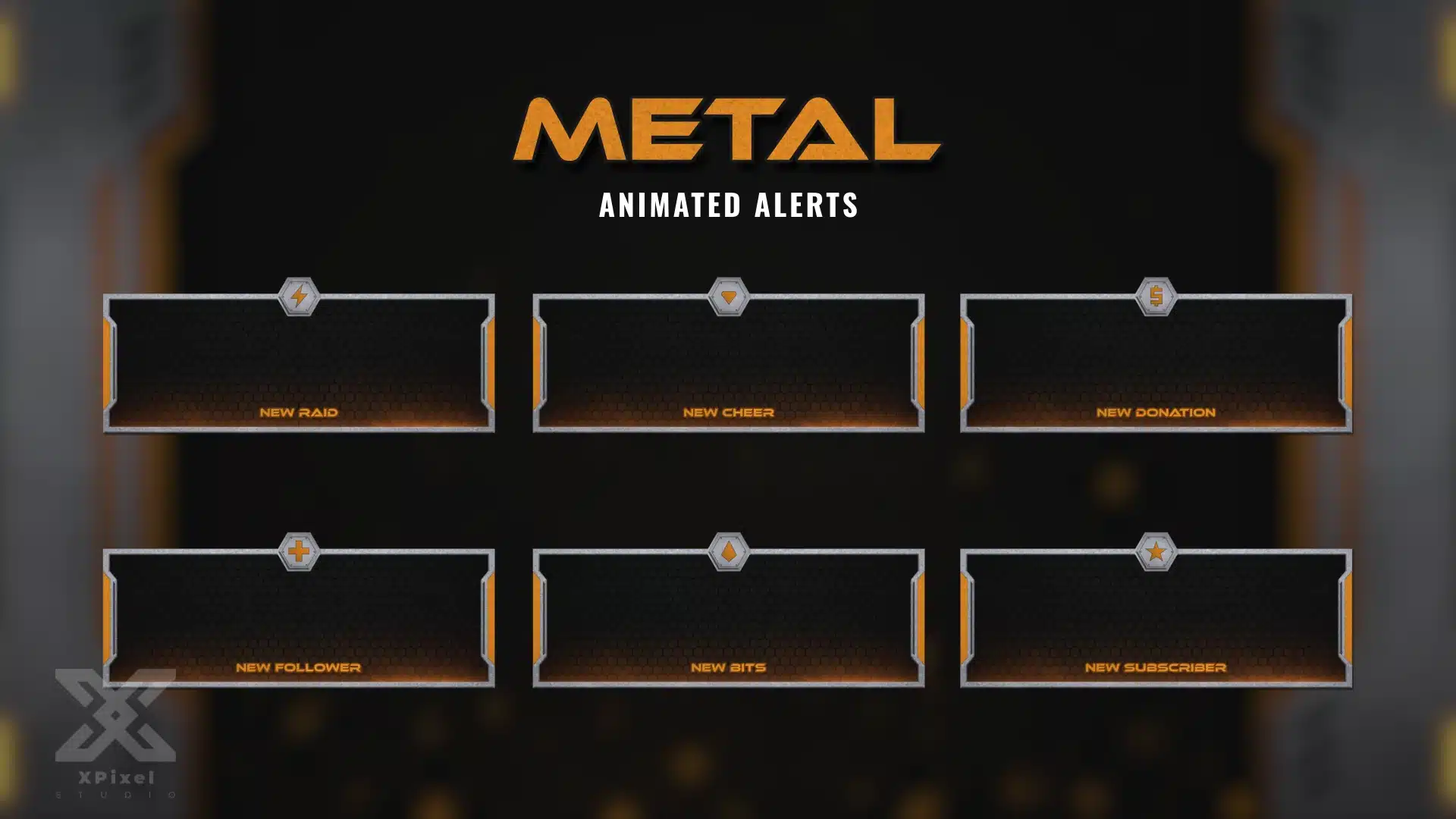
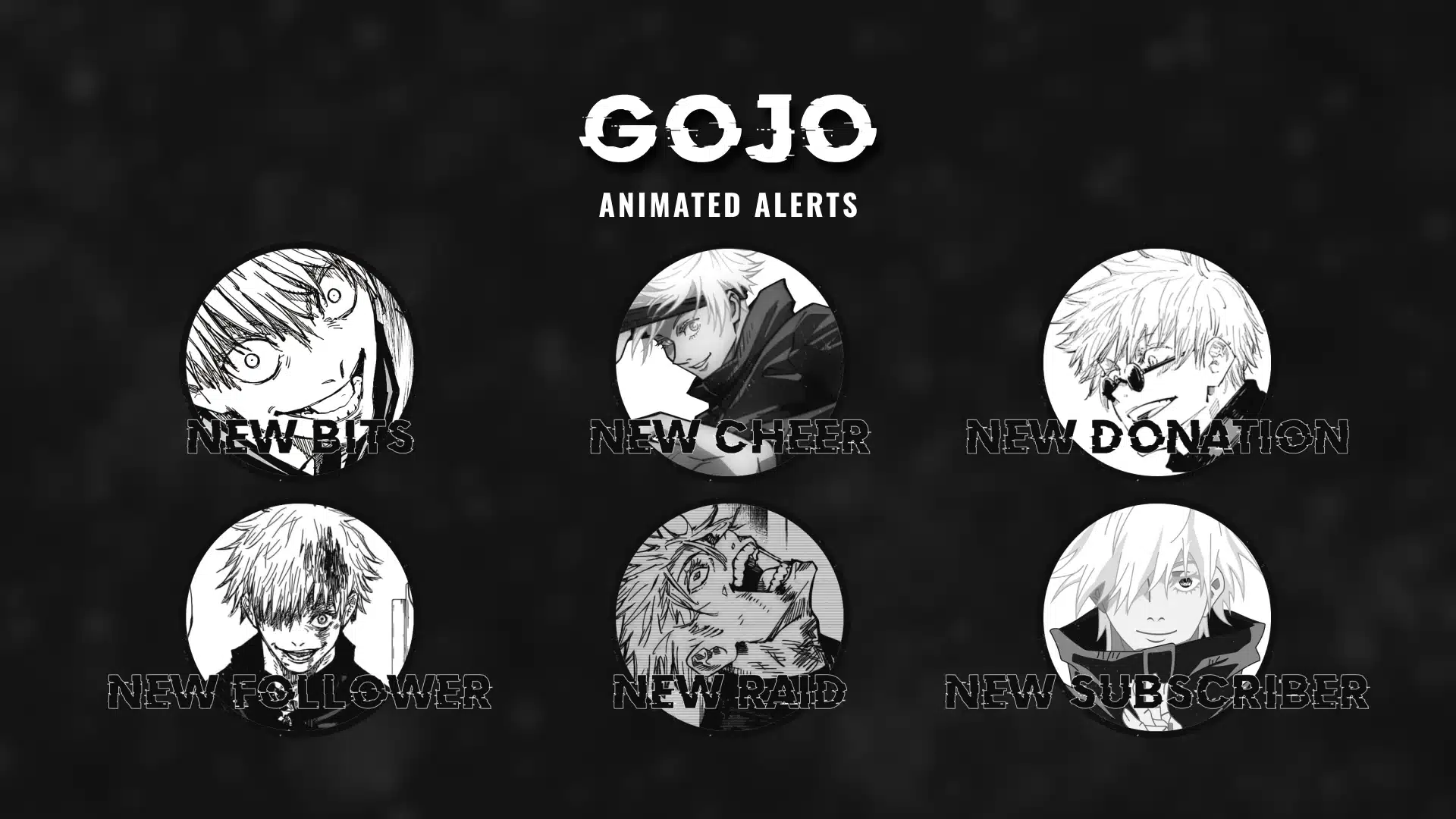
Stream Alerts (Twitch Alerts)
Want your stream to feel more alive and interactive? Stream alerts (also known as Twitch alerts) are animated pop-ups that appear when viewers follow, subscribe, donate, or trigger other events. They help you celebrate support instantly, boost engagement, and make your stream look more professional across Twitch, YouTube, and Kick.
If you’re building a complete stream setup, you may also want matching assets like stream overlays and stinger transitions:
What’s Included in These Alert Packs
Most alerts in this category are designed to be plug-and-play and typically include:
- Animated alert versions for key events (commonly: follow, subscribe, donation, raid, etc.)
- Custom sound effects (where included in the product)
- Quick-install / easy import files (when supported)
- Clean layout and readable typography so alerts look good on both desktop and mobile
Note: What’s included can vary per product—check each listing for the exact bundle contents.
What Are Stream Alerts?
Stream alerts are on-screen animations that trigger in real time when an event happens on your channel—like a new follower, subscriber, donation, or raid. Besides looking cool, alerts also encourage more interaction because viewers can see their support acknowledged instantly.
How to Add Alerts to OBS, Streamlabs, or StreamElements
Most creators install alerts using OBS Studio, Streamlabs, or StreamElements. The common setup process is:
- Import the alert files or use the provided quick-install method
- Add the alert as a source (Media / Browser source depending on your setup)
- Test trigger events to confirm sound + timing
- Adjust sizing and safe margins so it doesn’t block gameplay or facecam
Tip: Keep alerts short and clean—smooth motion + good readability looks more premium than overly long animations.
How to Choose the Right Alert Style
Pick alerts that match your brand and overlay theme:
- Minimal alerts: clean and modern, best for competitive games
- Bold alerts: high energy, great for variety and entertainment streams
- Themed alerts: anime, cyber, fantasy, etc. for strong channel identity
For the most professional look, match your alert style with your overlay set (fonts, colors, glow level, and overall vibe).
Frequently Asked Questions
Common events include followers, subscribers, donations/tips, raids, and more depending on the platform and your alert tool setup.
Yes. Alerts are widely used in OBS Studio. You’ll typically add them as a media source or browser source depending on the alert type and installation method.
Yes. Both Streamlabs and StreamElements support alerts and are popular for quick setup and event-based triggers.
Most alert files are lightweight. If you want the smoothest performance, avoid stacking too many animated elements at once and keep alerts optimized and short.
Yes—alerts are platform-agnostic. As long as your streaming software/alert tool supports the platform, you can use them across Twitch, YouTube, and Kick.